Week - Categories
A category is a group you name yourself, running across the whole week: your planner is a grid of days crossed with the categories you named. You name it, you colour it, and everything filed under it follows along.
- Add a categoryAdd category, at the foot of the week. Name, colour, Enter.
- Add a categoryAdd category, under the last one. Name, colour, done.
- Move a taskDrag it into any square. Day and category change together.
- Move a taskDrag its grip into another category. For another date, open it and set its Day field.
- Edit a categoryClick its name, or the colour dot beside it.
- Edit a categoryTap the pen at the end of its heading.
- Skip categoriesMake none. The week is then days you write into.
Categories are yours to name
A category holds whatever you decide it holds: Work, Home, a course, a client, one called "Everything". Planye doesn't arrive with columns already drawn, because we don't know what your week is made of.
Some people run three. Some run one and never think about it again.
and yes, you can just not use themThe week is a grid, not a list
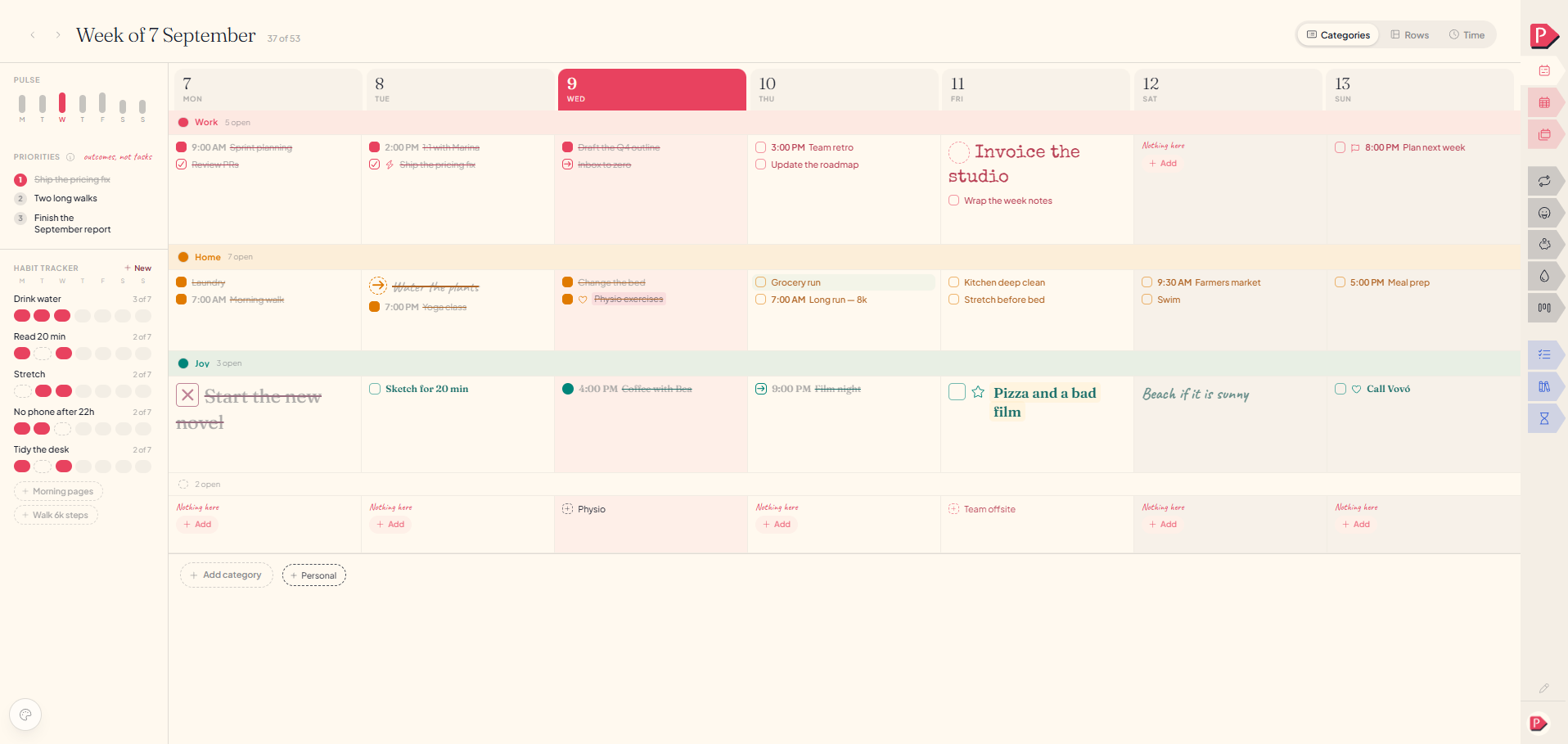
At your deskSeven days across, your categories down. Every square is the crossing of the two, so a line always answers two questions at once: which day, and what kind of thing it is.
That's why moving something is one gesture. Drag a task from Tuesday's Work square into Thursday's Home square and you've changed both.
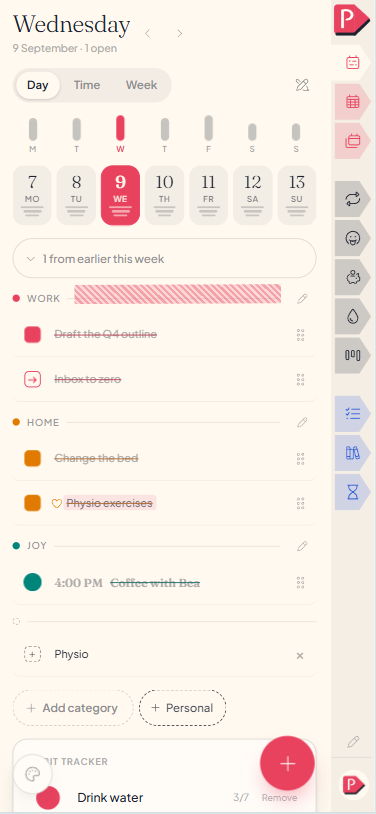
One day, in the week's own categories
On your phoneA list of categories, one day at a time. A phone has no room for seven columns, so the week's grid is read a column at a time: same tasks, same categories, same colours, stacked down the page.
A category with nothing on this day says "Nothing here today." rather than vanishing, so the week keeps its shape from one day to the next.
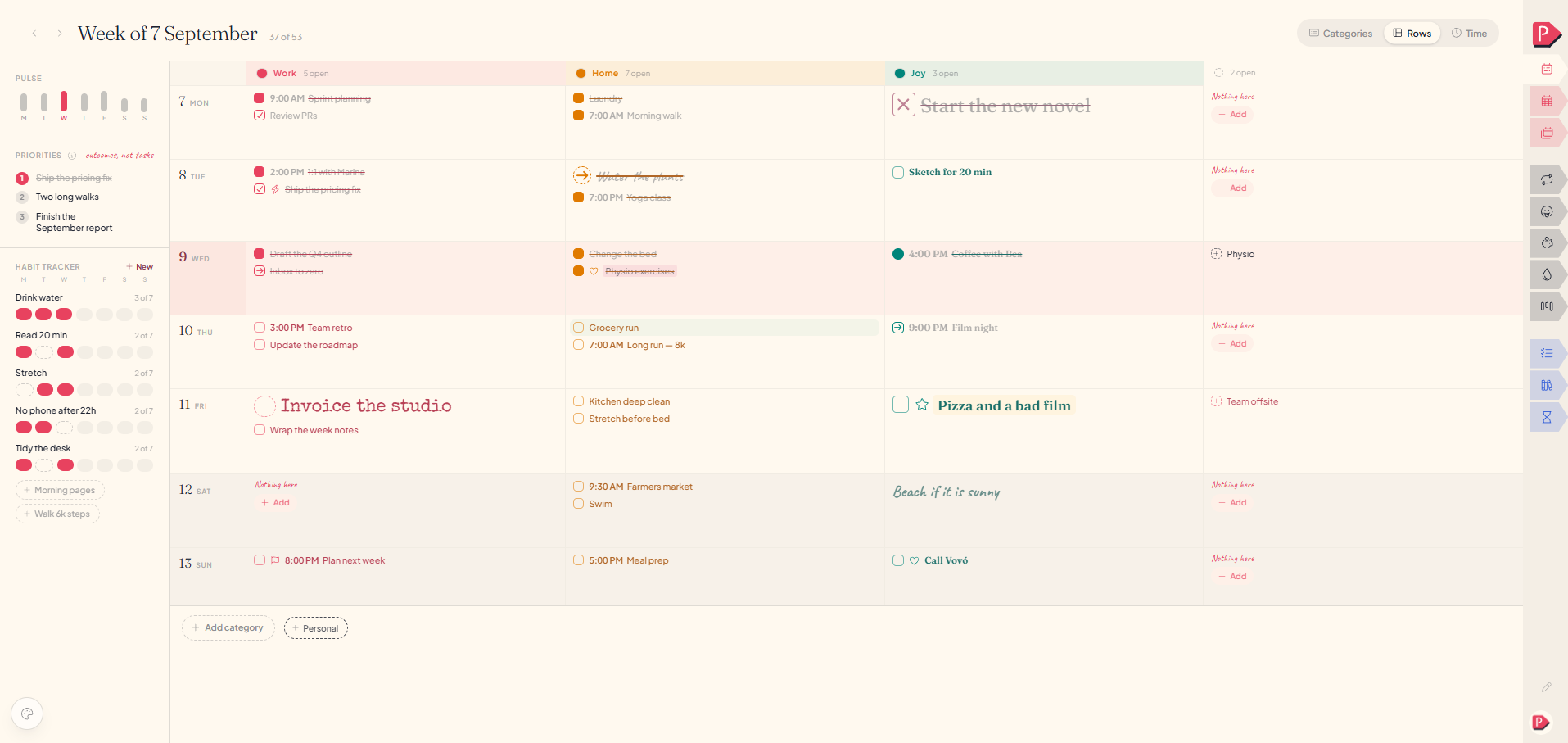
Rows: the same grid, turned
At your deskCategories and Rows are one grid read two ways. Pick either on the layout toggle at the top and the axes change places: days down the page and categories across it, instead of the other way round.
Nothing about your week changes when you turn it, so every gesture carries over. Same squares, same tasks, same drags.
- Categories reads a thread across the week. Work, Monday to Sunday.
- Rows reads a day across its threads. Everything Tuesday holds.
Rows layout: days down the page, categories across it, same tasks and squares as the Categories layout
Adding a category
- Press the dashed Add category button at the foot of the week.
- Type a name and pick a colour beside it.
- Press Enter.
Enter leaves the composer open for the next one. Escape closes it without writing anything.
- Tap Add category, under the last one.
- Type a name and pick a colour.
- Press the button at the foot of the sheet.
Name and colour are all it asks for, and both can be changed later.
Last week's categories, offered back
Open a new week and last week's categories wait beside Add category as faded pills, in the colour they had. One tap turns a pill into a category on this week, lettering and all.
You're offered only the ones you don't already have, and a pill stays until you answer it. The cross beside its name stops it being suggested.
ignoring any of this costs you nothingAccepting a carried category
Accepting a carried category, on a phone
Renaming, recolouring, reordering
Name and colour
Click the category's name, or the colour dot beside it, and it becomes editable on the category itself. Enter saves, Escape puts it back. Everything filed inside follows the new name along.
Colour comes from your theme's five swatches, or your own off the wheel. One of the five follows you when you re-theme; your own stays exactly that colour. See Themes.
Renaming and recolouring a category
Where it sits
Drag a category by its bar and drop it where you want it. The order is this week's, and rearranging now does not reach back into weeks you have already lived.
A connected calendar's category is the exception: it sits in the same place in every week. See Connect calendar.
Reordering categories
Tap the pen at the end of a category's heading. One sheet holds the lot: its name, its colour, its style, where it sits, and a way to remove it.
Move up and Move down appear once there's a second category to move past. A phone doesn't drag a category by its bar, because that gesture already carries a task between categories.
Opening a category's sheet on a phone to rename and recolour it
Remove sits at the foot of the same sheet. It never removes what's inside: those lines come loose into the unnamed category, exactly as they do at a desk.
Removing a category from its sheet on a phone
Writing a task into a category
Click the square where it goes and type. The line lands in that day and that category, because the square is both.
Clicking an empty square and typing a task straight in
Tap the filled circle at the bottom right. Write the words, pick a category or the dashed No category pill, give it a time if you want one, then press the button at the foot. It names where the task is going: "Add to Thursday".
Category and colour stay set afterwards, so a run of tasks for one category is a run of typing.
Tapping the add circle and writing a task into the sheet
A task that repeats through the week
Open a task and press Repeat, then pick the other days it happens on: Monday and Wednesday, every weekday, whatever the real pattern is. Each day it lands on becomes its own ordinary copy, filed in that day's square.
Setting a task to repeat on three days of the week
Setting a task to repeat on three days of the week
It is a pattern for this week, not a standing rule, so there is no end date to set. Untick a day, or press Only this day to keep just the one you are looking at.
a plan for this week, not a promise about every weekOpen the new week and it waits at the foot as a Repeating last week chip, wearing the days it would fill. One tap writes all of them.
Accepting a repeating task into the new week with one tap
Accepting a repeating task into the new week with one tap
Moving a task between days and categories
Drag it into the square you want. A square is a day and a category at once, so dropping it decides both. It moves rather than copies.
Another category, same day
Drag the grip at the end of the row into any other category, or up and down inside its own. The unnamed group appears while you drag, so there's always somewhere to drop a task that belongs to no category.
a task on top feels more importantDragging a task by its grip into a different category on the same day
Another date
Open the task and set its Day field. It moves straight there with its category, time and styling intact.
Changing a task's day by opening it and setting its Day field
Things left from the last 7 days
On your phoneOn today, a small pill reads "3 from the last 7 days" when a task without a time is still open from the seven days before. Tap it to expand: each task with the day it came from, and a Move to today beside it.
It appears on today and nowhere else. Nothing in it is marked late, and nothing moves on its own.
ignoring any of this costs you nothingThe last-7-days pill, expanded
Categories belong to one week
The Work in this week and the Work in next week are two separate categories that happen to share a name. So renaming, recolouring or reordering one changes only the week you are in.
It means a heavy fortnight can have a Deadline category that simply stops existing afterwards, and you never have to go and tidy it away.
nothing to go back and tidy upQuestions about categories
The details, for when you want them. Nothing here is required reading.What happens if I remove a category? Do I lose what's in it?
No. Removing a category never removes what's written in it. The lines inside come loose into the unnamed category at the bottom of the week, still there, just no longer filed under anything.
At a desk, Remove is a quiet word at the end of the category, visible when you point at it. On a phone it's in the category's sheet, behind the pen.
Removing a category
What's the category at the bottom with no name?
The unnamed group, marked with a dashed grey dot. It holds anything without a category: lines you wrote without picking one, lines that came loose when you removed a category, and tasks the month has offered into your week.
With nothing in it, it doesn't draw itself at all, except while you're dragging, or if you have no categories yet, in which case it's the whole week.
What's the difference between Categories and Rows?
Only which axis is which. Categories puts days across the top and yours down the side; Rows swaps them, so each day is a row and each category a column.
It's the same week and the same tasks either way, and switching changes nothing about what you've written. Pick whichever matches the question you opened the week to ask.
The toggle is at the top of the week at a desk. A phone shows one day at a time instead, so it has no use for the distinction.
Can I change how the writing in a category looks?
Yes, for everything filed under it. Open a category for editing and there's a Style pill with an Aa on it: the size, the lettering, the weight and the shape of the checkbox you set there become what every line in that category wears.
Any single line can still disagree with its category, and one that hasn't said otherwise follows along. See Styling a line.
If I tick a task on my phone, is it ticked at my desk?
Yes, because there was only ever one of it. A day and a week are the same week read at two distances, not two lists to keep in step.
What about things I didn't get to earlier in the week?
They stay where they are, quietly. Nothing goes red, nothing is counted against you, and the word overdue appears nowhere in Planye.
Beside the category name we show only the number of open lines in it, so a category with nothing left is quiet. On a phone, today also carries a pill offering to move them forward, which you can ignore.
ignoring any of this costs you nothingIs there a limit to how many categories I can have?
No. Add as many as your week genuinely has.
Worth saying though: most weeks read better with three or four than with nine. A category per project turns the week into a filing cabinet. If you're tempted by nine, what you might actually want is Projects.
What if I don't want categories at all?
Then don't make any. With no categories the week is seven days you write into, which is how a lot of people use it and how most paper planners work anyway.
Start adding them the week you feel the need, and the weeks before stay exactly as they were.
Do categories show up anywhere other than the week?
They colour everything the week draws. Read the week against the clock instead and each block keeps its category's colour. See Week time.
If I tick or restyle one day of a repeating task, does it change the others?
Depends which. Ticking Monday off leaves Wednesday open, and moving one copy to an hour or another category is a fact about that day alone. Its look is the one thing the whole series shares: recolour or restyle any copy and every copy in that week repaints, since a stray-coloured Wednesday would stop reading as part of the same thread.
Can the same category hold tasks on more than one day?
That's what a category is for. It runs the full width of the week, so Work holds Monday's writing and Thursday's writing in the same row, each under its own day.
Why does a task from the month show a plus instead of a checkbox?
Because it's a task the month has offered into your week, not one you wrote here. The plus is how the week takes it on; once accepted it's an ordinary task with an ordinary tick.
The × at the other end of the row is the other answer, if it isn't something you want this week.