Week - Time
Time is your week set against the hours of the day instead of against your categories: an hourly schedule for time blocking the week you already wrote. Same entries, same colours, one switch apart.
- Turn to itThe layout toggle at the top of the week.
- Turn to itThe Time tab, beside Day and Week.
- Give a timeDrag a task down from Anytime onto the grid.
- Give a timeOpen it from Anytime and set its Time field.
- Write one hereClick an empty slot and type. It lands on that hour.
- Write one hereThe filled circle. Give it a time in the sheet.
- Change how longDrag the bottom edge of the block.
- Take it back offClear the hour. The task itself is unchanged.
The same tasks, read against the clock
Your planner opens on its categories. Time is the same writing read against the hours instead: what it is, or when it happens. Nothing about an entry changes when you switch.
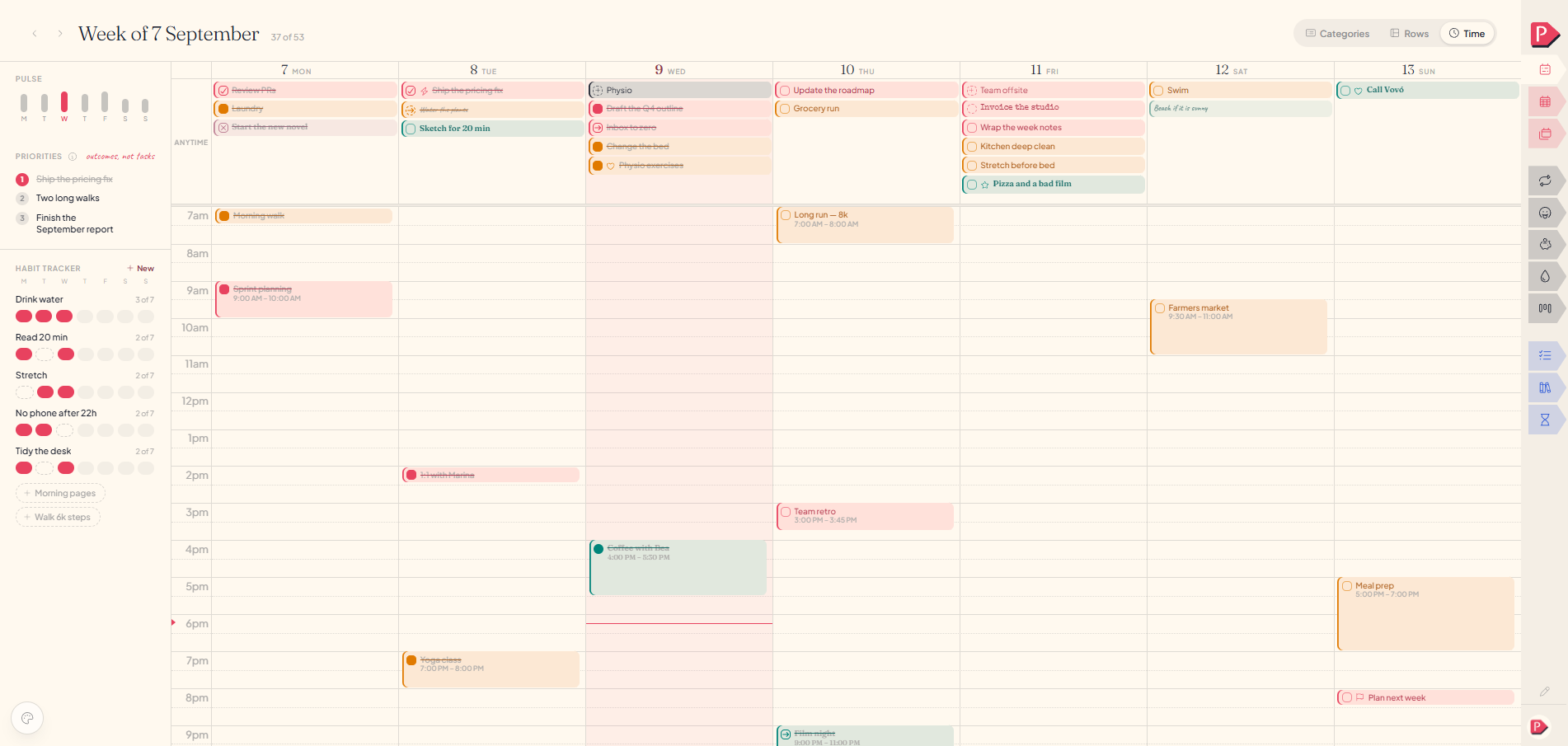
At a desk it's a clock-hour grid, seven days wide, with an Anytime strip along the top. Blocks sit where you put them and keep their category's colour.
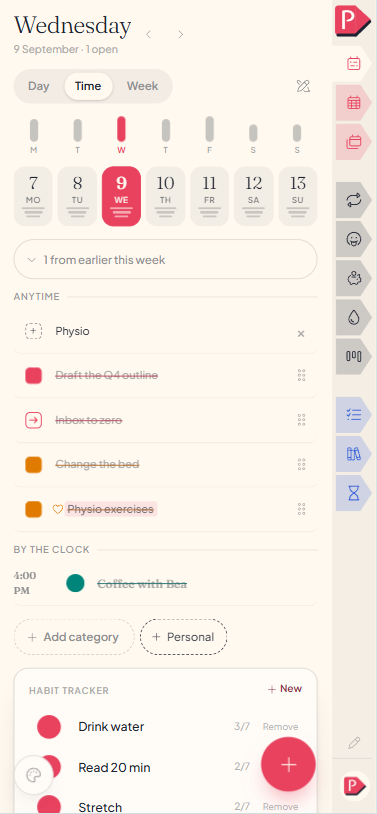
On a phone it's one day, split into two lists: Anytime above, for anything with no hour on it, and By the clock below, ordered by the time each task carries.
For the categories themselves, see Week categories.
Anytime
Anything without an hour sits in Anytime, and this is most of a week's writing. Being in Time doesn't force a task onto the clock, it gives you somewhere to put it if you want to.
most things don't need an hour, and that's fineGiving a task a time
Out of Anytime
Drag a task down from the strip onto the grid. It snaps to the half hour, so you're never fighting for a minute that doesn't matter. Drag the bottom edge of its block afterwards to say how long it runs.
Dragging a task from Anytime onto a nine o'clock slot
Straight onto the clock
Click an empty slot and write there. It lands on that hour and belongs to whichever category is open in the column above it, so it reads as an ordinary task the moment you switch back.
Tapping into an empty slot to create a new task straight on the grid
- Open the task from the Anytime list.
- Set its Time field.
It moves down into By the clock on its own, at whatever position that hour puts it in. Clearing the field sends it back up to Anytime, untouched.
Opening a task from Anytime and setting an hour on it
Writing a new one: tap the filled circle, and give it a time in the sheet. With an hour it lands straight in By the clock; without one it opens in Anytime.
Tapping the add circle and writing a task into the sheet
By the clock
On your phoneOnce a task has a time it sits here, earliest first, with the hour printed in front of the words. The tick stays in the same place as it does in Anytime.
This list keeps its own order, so what moves a task within it is its hour and nothing else. Anytime is the one you order by hand, by dragging a row's grip.
Taking the time back off
- Drag the block back up into Anytime, or
- open it and press Move to anytime.
Dragging a block back up into the Anytime strip
Open the task and clear the hour. It goes back up to Anytime where it was.
Opening a timed task and clearing its hour to send it back to Anytime
Either way the task itself is untouched, only its hour clears. Switching back to categories never does this on its own.
The hours shown, and where now is
At your deskThe grid runs from 7 in the morning to 10 at night until you say otherwise, and it widens on its own the moment something is scheduled outside that.
Set your own under Hours in Customize, stepping the start and the end to where your day begins and finishes. That only sets where the grid opens: anything scheduled outside it, like an early flight, still shows. A thin line marks the current time as it moves down.
Opening a block
At your deskClick a block and a small card opens beside it: its clock range at the top, the label to edit, and the same Aa Style pill every task carries elsewhere.
See Styling a line for what opens behind it.
A task's card open in Time view, showing its hour and the Style pill
Why it's not the only view
Categories groups your tasks by what they belong to, the way a list does. Time lines the same tasks up against the clock, the way a schedule does. It's one week sorted two ways, so switching loses nothing and neither one is the "real" week.
Time is opt-in because most tasks never need an hour, and a grid drawn for the handful that do would crowd out the ones that don't. Block a whole day, block the two things that have to happen at an hour, or never open Time at all.
Questions about time
The details, for when you want them. Nothing here is required reading.If I switch back to Categories, do the times I set disappear?
No. A time you've given a task stays on the task, not on the view. Categories simply doesn't draw hours, since that isn't the question it's answering.
Is Time the same on a phone as at a desk?
Same tasks and same hours, read to fit the screen. A desk draws an hour-by-hour grid across the whole week and you drag blocks onto it. A phone reads one day as two ordered lists (Anytime, then By the clock) and you set the hour on a field instead of by dragging.
Getting there differs too: a desk has a layout toggle at the top of the week, a phone has a Time tab beside Day and Week. Switching one never changes the other.
Does dragging a task onto the grid snap to a specific interval?
Yes, the half hour. Drop a task anywhere near nine and it lands on nine, not on 9:07.
Can I change how long a task takes once it's on the grid?At your desk
At a desk, drag the bottom edge of its block up or down. It snaps to the half hour the same way placing it does, and the label underneath shows the new range as you drag.
A phone's Time tab is two lists rather than a grid, so a task there carries a start time and no length.
Resizing a block by its bottom edge, at a desk
What happens if two tasks share the same hour?
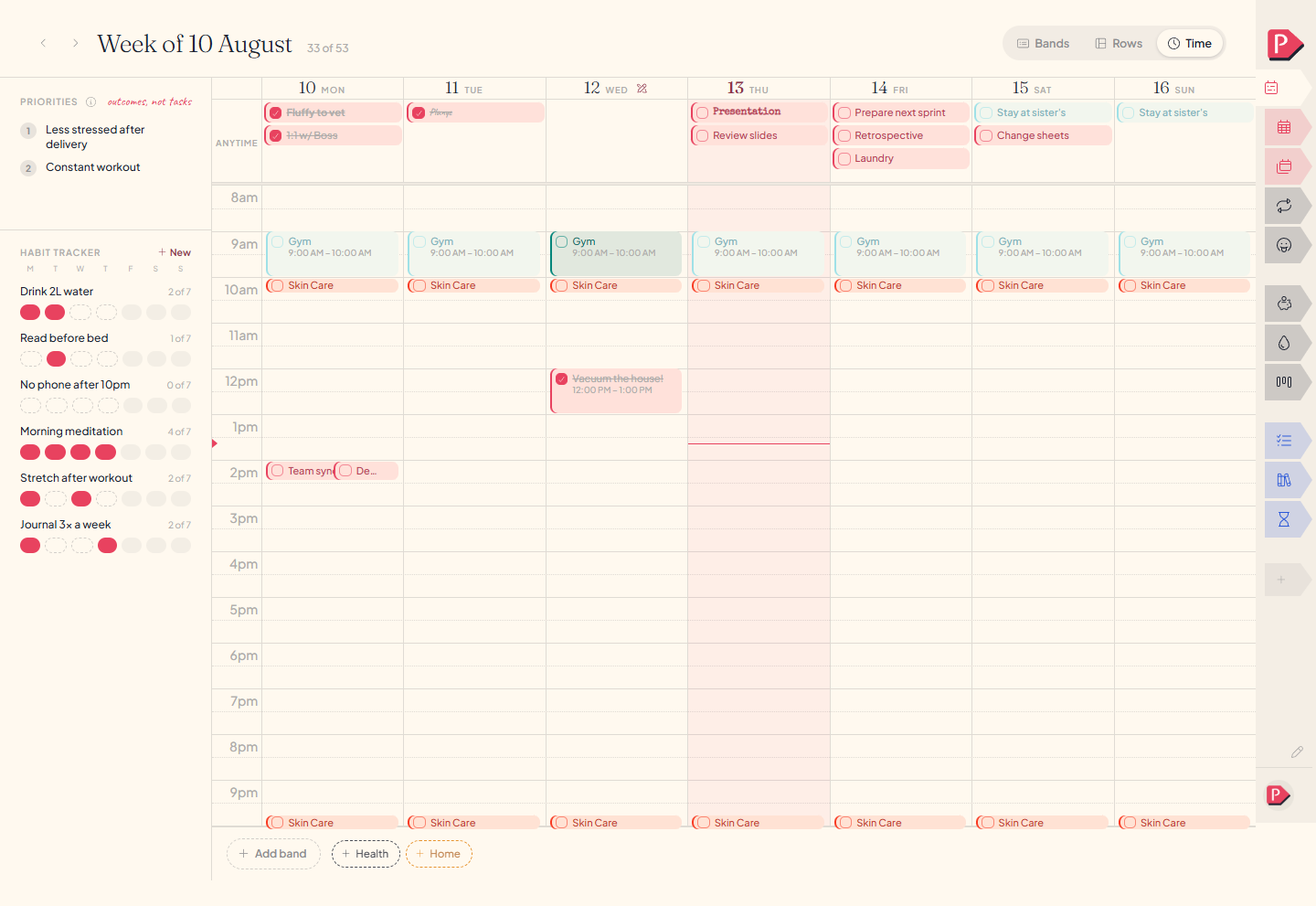
On the grid they sit side by side, each narrowing to make room for the other, the way most calendars draw a clash. A block too narrow to show its range drops the range and keeps the label.
In a phone's By the clock list they're simply two rows at the same hour.
Two tasks at the same hour, sitting side by side on the grid
Can I change which hours the grid shows?At your desk
Yes, under Hours in Customize, which appears once the week is set to Time. Step the start and the end to where your own day runs and the grid opens there from then on.
You don't have to. Whatever you set, the grid still stretches on its own for anything scheduled outside it.
Why does a block's colour come from its category if I'm not looking at categories?
Because a task belongs to its category whether or not the page is currently drawing it as a group. Keeping the colour is what makes the two readings feel like one planner. See Week categories.
What order is the Anytime list in?
The one you put it in. Drag a row by its grip to move it up or down, and it stays where you left it. By the clock is the opposite: it orders itself by hour and nothing else.
Does anything look different about a time that's already passed today?
Only the now line, which keeps moving down the grid as the day goes. Nothing about a passed hour's task changes colour or fades.
nothing goes red when an hour passesAre habits shown in Time?
Yes, in their own card, exactly as elsewhere in the week. A habit is kept by the week rather than at an hour, so the clock has nothing to place it at. See Habits.
Where do tasks with no hour go?
Into Anytime, under the day they belong to. They stay there until you give one a time, and nothing about them is pending or unfinished for sitting in it.
- Anytime this day, no hour set.
- The clock this day, at the hour you gave it.