Styling a line
Any line, once it exists, can be formatted: its typeface, its size, its weight, its ink, a highlight or a background behind it, and the shape of its checkbox. You open all of it from the Aa Style pill.
- Open itThe Aa Style pill, wherever you're editing a line.
- Style a whole categoryStyle the category and every line in it follows.
- Put it backReset, and the line goes back to following its category.
- Make a headingSet its checkbox to None. A line with no box isn't a task.
The Aa Style pill
The door into all of it is the same wherever you find it: a small pill reading "Aa Style" with a chevron beside it.
Writing something down never asks about any of this. You type words, maybe pick a colour, press Enter. Style is a separate, later decision on a line that already exists.
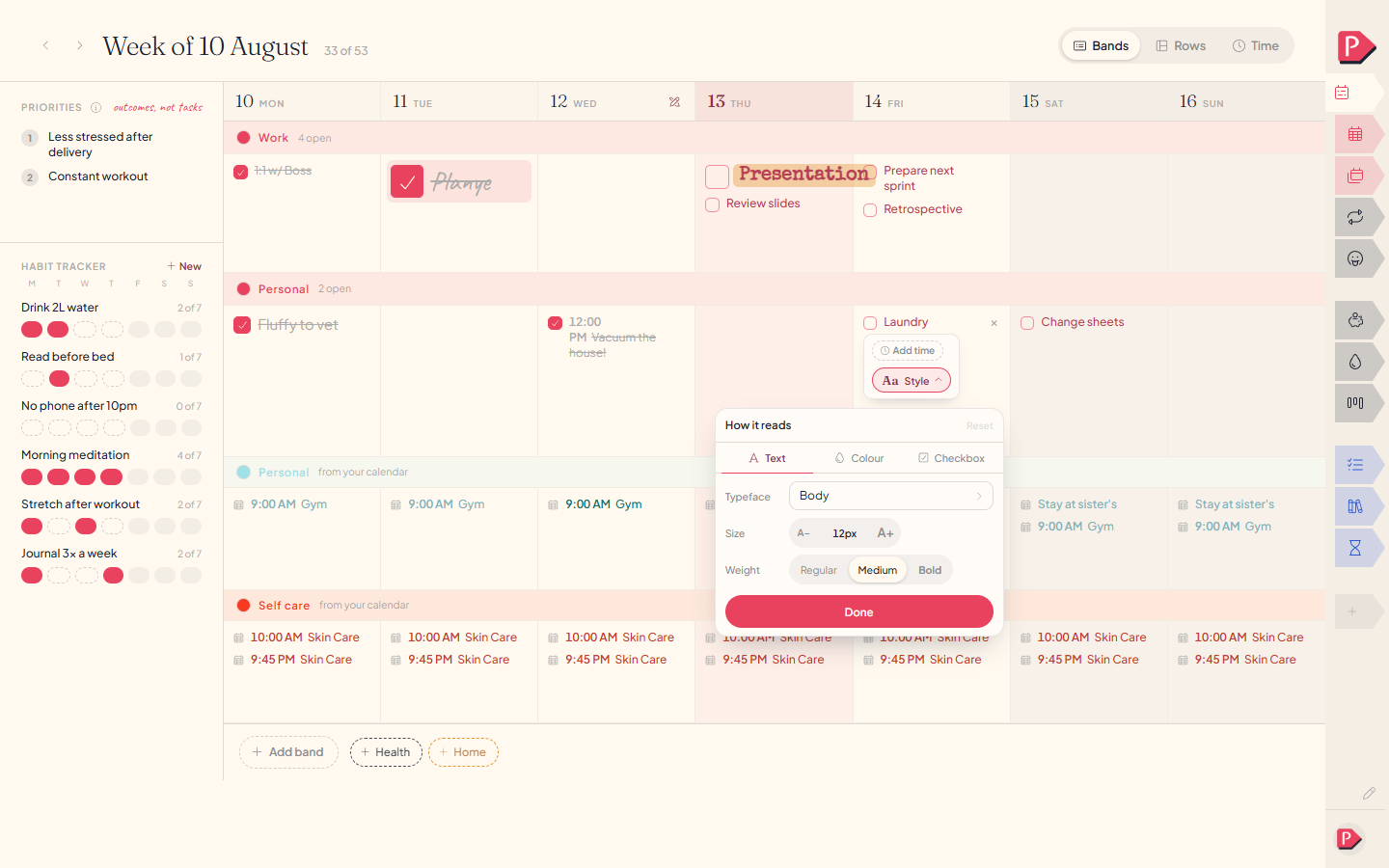
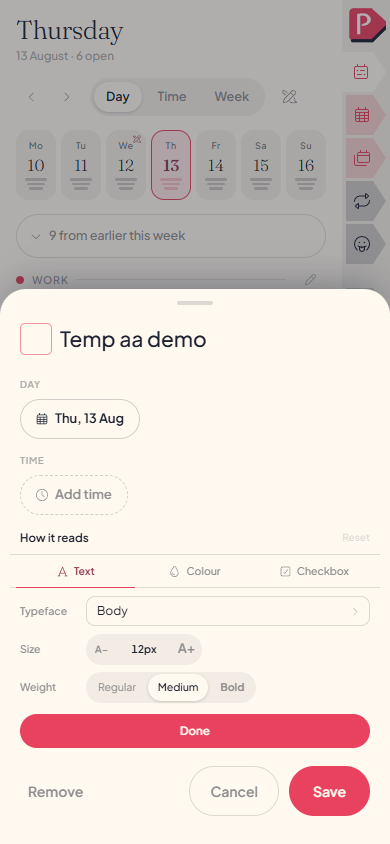
Text, Colour, Checkbox
Open the pill and three tabs sit across the top:
- Text, which of the four typefaces it's set in, how large, and how heavy.
- Colour, the ink itself, a highlight over the words, and a background under the whole line.
- Checkbox, the shape of its box or none at all, the line it's drawn with, and a small mark beside it.
Every option draws itself the way it would actually look on your line, in the colour it's wearing.
Switching between the three style tabs
Switching between the three style tabs
When a line stops following its category
Set a look on a category and every line inside uses it too, including ones you add later. To make one line different, open its own style and pick something else; until you do, it follows the category.
restyle the category and everything that never opted out moves with itTwo different colours behind a line
- Highlight a pen drawn over the words. It hugs the text and stops where the text stops.
- Background the sheet the whole line sits on, filling it edge to edge.
Reach for a highlight to mark specific words, and a background to make a whole line stand out from the ones around it.
A line with no box isn't a task
Under Checkbox, None turns the line into a heading or a note rather than something to tick. It's never counted, never struck through, never treated as unfinished forever.
Put a box back on it later and whatever done state it had is still sitting there, untouched.
Questions about styling
The details, for when you want them. Nothing here is required reading.Where do I find the Style pill?
Wherever you can open a line for editing: a task in the week, the month or the year, a line on a list, a line in a project's checklist, a category's own bar, and the card that opens on a timed block. A category's panel shows two tabs, since a category's colour lives on the category itself.
Does styling a line change whether it counts as done?
Only the checkbox shape does, and only in one direction: None takes the line out of every tally. Colour, typeface and size never affect it either way.
How do I put a line back the way it was?
Open the pill and press Reset. It puts the line back to following its category, or to the plain default if it has none, and greys out once there's nothing left to put back.
Can I style a line from my phone?
Yes for a task in the week, fully: the same panel opens from a sheet instead of a floating card, with every tab and every control on it. A line on a list or in a project can only be styled at a desk, the same as editing its words. See Week categories.
What happens to a styled line when I change theme?
A colour taken from your theme's swatches moves with the theme. A colour you mixed yourself stays exactly that colour. See Themes.