Week - At a glance
However much of the week you want in front of you: all seven days at once, or one day at a time with the rest a tap away. The arrows step whatever's on screen, and Today brings you back.
- Change weekThe arrows in the header, a week at a time.
- Step back or forwardThe arrows beside the date: a day under Day and Time, a week under Week.
- Come backToday, which appears once you've wandered off.
- See all sevenThe Week tab. Seven cards, one per day.
- Change the dayTap a date in the strip along the top, or use the arrows.
- Open a dayTap its card. That's Day, on that date.
How much of the week you see
At a desk, all of it. There's room for seven columns, so the whole week is on screen and there's nothing to choose between.
The only choice up here is on the layout toggle: which way round the grid reads, or whether to read it against the clock.
A week is seven columns wide and a phone is not, so the week is read one day at a time, with three tabs at the top choosing the reading:
- Day this day, in its categories.
- Time this day, down the clock.
- Week all seven, at a glance. This page.
The week as seven cards
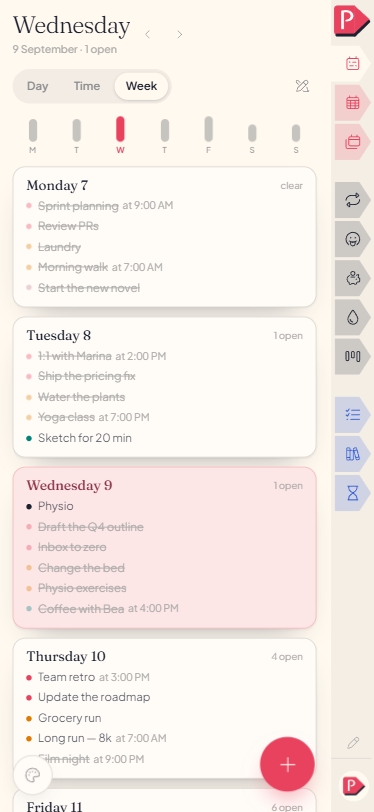
On your phoneWhere Day and Time each open one day, Week steps back and shows all seven, stacked rather than side by side. Today's card is lifted with a soft border, so it's never a search among seven identical rows.
What a card shows
On your phone- At the top the weekday and date, with a count of what's still open beside it, or the word "clear" if there's nothing left.
- Beside the count a small pen mark, once that day has a journal page.
- Underneath every task in miniature: a coloured dot for its category, the label, and its hour after it, "at 9:00".
A finished task keeps its place and reads struck through and faint, so a full day still looks like a full day.
Tap anywhere on a card to land on Day, reading that date. The cards here are for reading; the editing happens on the day you open.
a glance here, the details when you open a dayThe strip of seven dates
On your phoneTap a date in the strip along the top to move to it without leaving the tab you're on. Each tile carries a short bar per entry, up to three, and a small pen if that day has a journal page, so you can see which days are heavy before opening them.
The strip stands under Day and Time, the two tabs that draw a single day. Week already shows all seven as cards, so it draws no strip above them.
The strip is also what the add circle reads. A new task lands on the date picked there, not on the card nearest your thumb, so tap the day you mean first.
Tapping a different day in the strip to jump straight to it
Moving between days and weeks
The arrows step a whole week, back or forward, as far as you like in either direction. Beside them, Today waits until you're back in this week and then stops offering.
The arrows step whatever you're reading. Under Day and Time that's a single day, so they walk the dates one at a time and roll into the next week on their own when they run off the end of this one. The strip follows them.
Under Week, where all seven are already in front of you, they step a whole week. Beside them, Today waits until you've wandered off the day and then stops offering.
Nothing is archived and nothing is locked. An old week is as editable as this one.
Questions about seeing the week
The details, for when you want them. Nothing here is required reading.I don't see the Day and tabs. Is something broken?
No. Your screen is wide enough to show all seven days at once, so there's nothing to choose between. The tabs, the strip of seven and the add circle appear once the screen is too narrow to hold seven columns side by side, whatever the device.
Does Planye remember which of Day, Time or Week I was on?
Yes. Which of the three you're reading is part of the page address, so reloading or returning to that address brings back the same view.
It's a phone's own choice, though, and it doesn't travel. Switching tabs here never moves the layout toggle on a desk, and switching that never moves these.
Can I tick or move a task straight from the Week tab?On your phone
No. Each card here is only a summary, not something you act on directly. Tap the card to open that day, and the same task becomes fully editable: tick it, rename it, recolour it, or drag it elsewhere.
Is the Week tab the same as the week at a desk?On your phone
Yes, it's the same week. A desk lays all seven days out as columns you act on directly. A phone reads them as a strip of summaries you tap into one at a time. See Week categories.
What does the number on a card count?
The tasks still unticked on that day. Habits aren't in it, since they're kept by the week rather than finished on a date. See Habits.
How far back or forward can I go?
As far as you like. There's no edge to the calendar and no point at which a week stops being editable, so planning three months out and correcting something from March both work the same way.
Do categories still carry forward into next week on a phone?
Yes, the same offer a desk gets. Last week's categories wait as faded pills once you open a day, and one tap turns a pill into a category on this week. See Week categories.
Can I open a day's journal page from here?
Yes. The pen button beside the tabs opens the journal for the day you're reading, drawn in your accent colour when that day already has a page. See Journaling.