Connect calendar
Planye integrates with Google Calendar and Outlook Calendar: connect your account and your meetings appear on your week and your day, beside the things you are planning. The integration is one-way and read-only, so Planye imports your events and never changes anything in your calendar.
- ConnectThe account menu at the foot of the spine, then Profile, then Calendar. Connect Google Calendar or Connect Outlook Calendar sends you to approve read-only access. Part of Planye+.
- Pick calendarsYour main one comes in on its own. Work, shared and holiday calendars wait under Not on your week, and one tap brings one in.
- Name and colourTap a calendar's name to rename it, the dot beside it to recolour it.
- MergeMerge two agendas: tick the calendars you want to combine, then press Merge. A Google calendar and an Outlook one can show as one category.
- StopThe switch takes a calendar off your week. Disconnect, under the accounts, ends Planye's access to that account.
What a connected calendar puts on your week
A connected calendar arrives as a category of its own, running across the week like any other, with each meeting in its day and at its hour. Nothing you had moves to make room for it, and nothing you wrote is touched.
What comes over is the event's name, its day, and the time it starts and ends. Locations, guest lists, descriptions and attachments stay in your calendar. The category is drawn only in weeks that have something in it, and reads the same on every view.
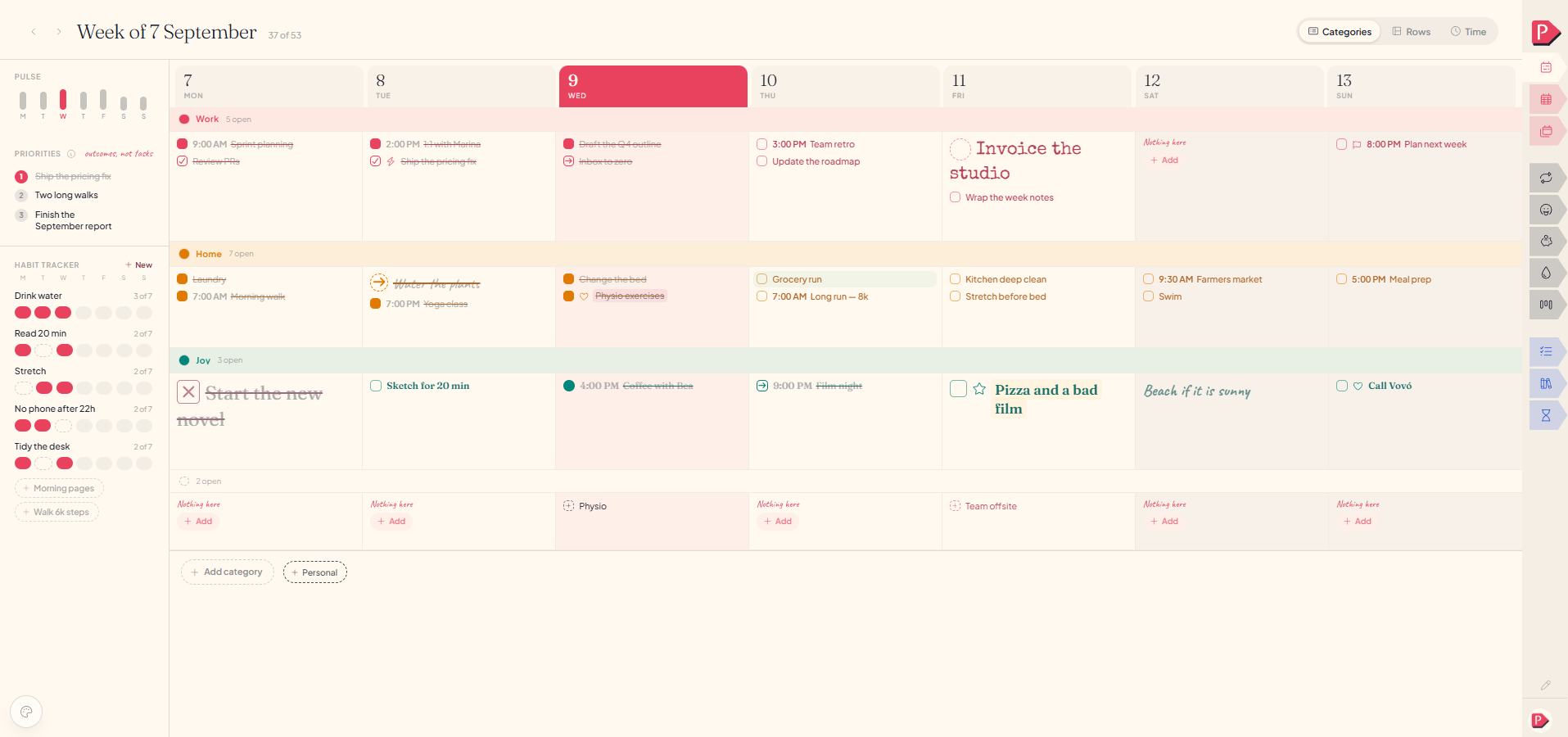
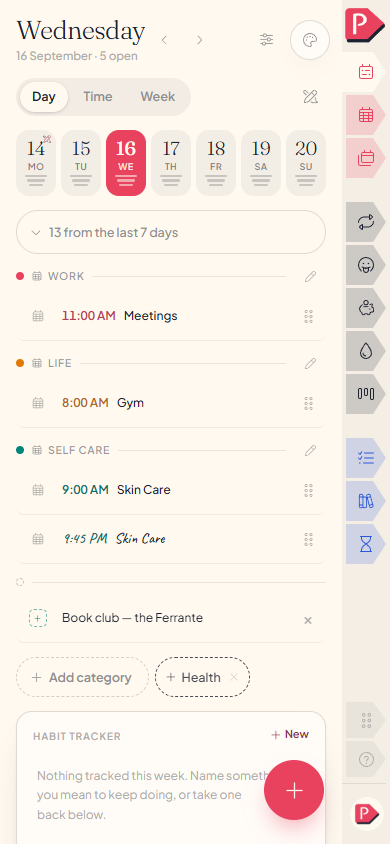
Connecting Google Calendar or Outlook to Planye
| Calendar | Status |
|---|---|
| Google Calendar | Available |
| Outlook Calendar | Available |
- Open the account menu at the foot of the spine and choose Profile.
- Scroll to Calendar, at the foot of the panel, and press Connect Google Calendar or Connect Outlook Calendar.
- Approve the read-only permission on Google's or Microsoft's own screen. You are sent back to your planner straight after.
- Your calendars are listed by the time you get back. Your main one is already on your week; the others are waiting to be picked.
More than one account is normal and supported, from either provider. Press a button again to add another, so a work Outlook account and a personal Google one can sit in the same list. Each calendar says which account it came in on, and each account has its own way out at the foot of the section.
Choosing which calendars show
Anything in the account's calendar list can come in: your main calendar, a work one, a team calendar somebody shared with you, a national holidays feed, a birthdays feed. Only your main calendar arrives switched on, because most accounts carry several of those and none of them were asked for.
Everything currently off is listed under Not on your week as small chips. One tap brings one in; the switch on its own line takes it back off, which removes nothing: the name, the colour and anything of your own filed in that category are waiting if you turn it on again.
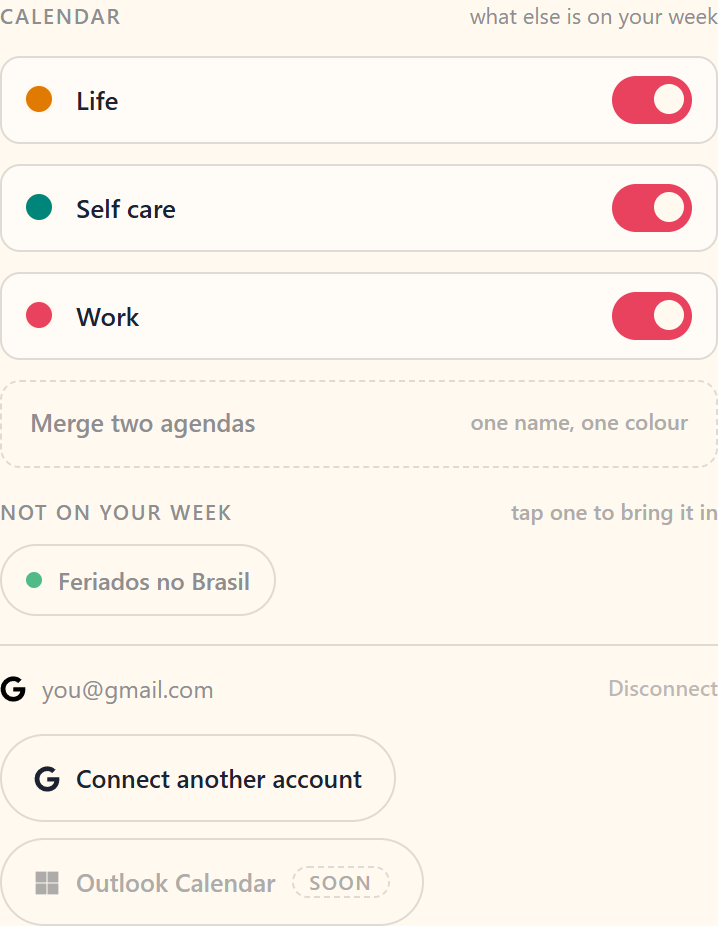
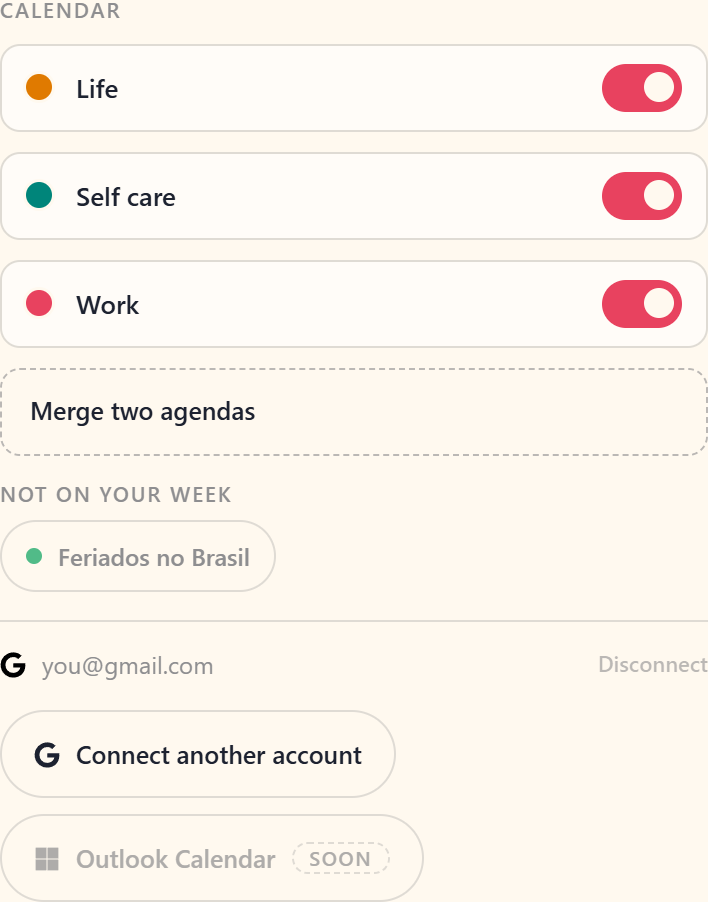
Renaming and recolouring a calendar
Tap the name to rename it, so a calendar called "isabella@company.com" can read as Work on your week. Leave the name empty and it follows the calendar's own name again.
The dot beside the name opens the colours. A connected calendar starts in the colour it already has in Google or Outlook, drawn as a disc before your theme's five swatches. Pick one of the five instead and it moves with your theme, the way every other colour in the planner does.
Either covers every week, past and future, and the category can be renamed, recoloured and dragged on the week itself too. See Week categories.
Merging two calendars into one category
If your working life is split across two accounts, Google and Outlook or two of either, two calendars are one thing to you and two rows on your week. Merging puts them under one name, one colour and one category.
- Press Merge two agendas.
- Tick the calendars you want to combine. The first one you tick gives the group its name and colour.
- Press Merge.
A merged row lists the calendars inside it, each with a small cross that separates it again and returns it to its own name and colour. Nothing asks whether you are sure. There is a few seconds of undo on both.
What you can change on an imported event
An imported meeting is not untouchable. The calendar owns its words, its day and its hour; you own how it looks and where it sits.
| On an imported meeting | Whose |
|---|---|
| Its words, its day, its hour | The calendar's. Change them in Google or Outlook and the next refresh brings the change over. |
| Its colour, lettering, size and mark | Yours, set the way you would on any other line. |
| Which category it sits in | Yours. Move it into one of your own categories and it stays there. |
| Whether it is ticked off | Neither. There is no checkbox on a meeting, because ticking one would claim to have done something in somebody else's calendar. |
| Whether it is on your week at all | Yours, through the switch beside its calendar. |
Click a meeting for the style card and drag it into any category you like. It lands at the foot of that category, in time order among the other meetings there, so your own lines keep the order you gave them. On the clock a block cannot be dragged or resized: moving a meeting an hour is done in your calendar.
Tap a meeting for a short style sheet, and drag it by the grip at the end of the line into another category on the same day. It lands at the foot of that category, in time order among the other meetings there.
It works the other way too: a calendar's category takes tasks of your own, filed there like anything else. See Styling a line for what the panel offers.
How often Planye syncs with your calendar
Planye asks Google or Microsoft for your events when you open it, when you come back to it, and quietly in the background while it is open. Turning a calendar on asks straight away rather than waiting for the next round.
Your week is drawn from the copy already on your device, so a failed refresh leaves it as fresh as it was rather than empty. Three months back and twelve months forward is the stretch kept; anything further out arrives as the months move.
- Times follow the device you are reading on, so a week read in another country reads at the hours it now is.
- An all-day event comes in without a time, and sits with the day's untimed lines.
- Something running past midnight draws on each day it covers, clipped to that day.
Turning a calendar off, and disconnecting an account
The switch takes one calendar off your week and leaves the account connected. It is the reversible one.
Disconnect, beside each address at the foot of the section, deletes Planye's permission for that account, so nothing more can be read. It asks first, because that is not something an undo here could take back.
What you made of it stays either way. Category names, colours, anything you coloured on a single meeting and any task of your own filed in a calendar's category are all kept, and connecting the same account again puts the events back around them.
disconnecting takes nothing of yours with itQuestions about Planye, Google Calendar and Outlook
The details, for when you want them. Nothing here is required reading.Is it a two-way sync? Can Planye add, move or delete events in Google Calendar or Outlook?
It is one-way. Planye reads your calendar and never writes to it, and that is the shape of the feature rather than a setting we have turned off: the permission asked for on Google's or Microsoft's screen is read-only, and there is nothing in Planye that could create or change an event even if it were granted more.
Writing to your calendar would need a different permission, one we would have to ask you for separately.
What does Planye read from my calendar?
The name of an event, the day it is on and the time it starts and ends, for the calendars you switched on. Locations, guest lists, descriptions, attachments and meeting links are not read.
What comes over is stored against your account for you to read, and nothing travels back the other way. See Privacy and your data.
I connected my account but only one calendar showed up. Where are the rest?
They are there, under Not on your week, as chips. Only your main calendar starts switched on, because most accounts carry several feeds nobody wants in a planner. Tap a chip to bring that one in.
Do I need Planye+ to connect a calendar?
Yes. Planning itself is free and always will be, and reading a connected calendar onto the week is one of the things Planye+ adds.
If a subscription lapses while something is connected, the events come off the week and nothing is deleted, at either end. The connection stays, your category names and colours stay, tasks you filed in a calendar's category stay exactly where they are, and subscribing again draws the same week back.
Why can't I tick a meeting off?
Because it is not your line to finish. A checkbox on somebody else's meeting would say you had done something in their calendar, and nothing here writes to a calendar.
If what you want is a line you can tick, write one. A task of your own can sit in the calendar's category, right next to the meeting it is about.
Can I put my own tasks in a calendar's category?
Yes, and they behave like any other task: a box to tick, words to edit, a colour of their own. The category goes on being drawn in that week even if the calendar has nothing in it, so nothing you parked there quietly comes loose.
I changed a meeting in Google or Outlook. When does Planye notice?
At the next refresh, which is the next time you open Planye or come back to the tab, and periodically while it is open. There is no live connection between the two, so a change made there shows up at the next refresh rather than the instant you make it.
Cancelled and declined things go the same way. A meeting cancelled there comes off your week at the next refresh, and one you turned down never arrives.
The times look an hour out. What is that?
Imported times follow the device you are reading on rather than the zone a calendar was created in, so Planye agrees with what Google or Outlook is showing you on the same screen. Travel, and the next refresh re-reads the week in the zone you are now in.
An all-day event has no zone and never gets one. A birthday is on the eleventh wherever you read it.
Can I move a calendar's category up the week?
Yes. Drag it by its bar like any other category, or use Move up and Move down in its sheet on a phone. It can sit above the categories you made, between them, or anywhere else in the stack.
The one thing that differs is how far it reaches. A category you made belongs to one week, so moving it in March moves nothing in April. A calendar's category is the same one in every week, which is why one rename and one colour cover them all, and its place travels the same way. Move it, and it moves everywhere.
A week with fewer categories than the place you gave it simply runs out of room, and the calendar sits at the foot of that one. Until you move it, that is where it sits in every week: under the categories you made, above the unnamed row at the end.
Does connecting share my planner with Google or Microsoft?
No. Nothing travels in that direction. Google or Microsoft is asked for your events and told nothing about what you write, and what comes back is stored against your account for you to read. See Privacy and your data.
Can I connect an Apple calendar or an iCal feed?
Not yet. Google Calendar and Outlook Calendar are the two you can connect today. If your calendar lives somewhere else and that somewhere else can publish to a Google calendar, that route works in the meantime.