Journal
The Journal tab keeps your notebooks, which are journals that aren't tied to a day, in folders you name, and a calendar of every day that has a journal page.
- Make a notebookNew notebook, then type its name on the cover.
- Make a notebookThe + button, then Notebook.
- Write in itOpen it. The page inside is the same as a day's.
- File itNew folder, then drag the notebook onto it.
- File itHold the notebook, then Move to.
- Find a dayPick a date under Days to open its page.
- Skip itNothing needs a notebook. A day's journal works the same without one.
What's on the Journal tab
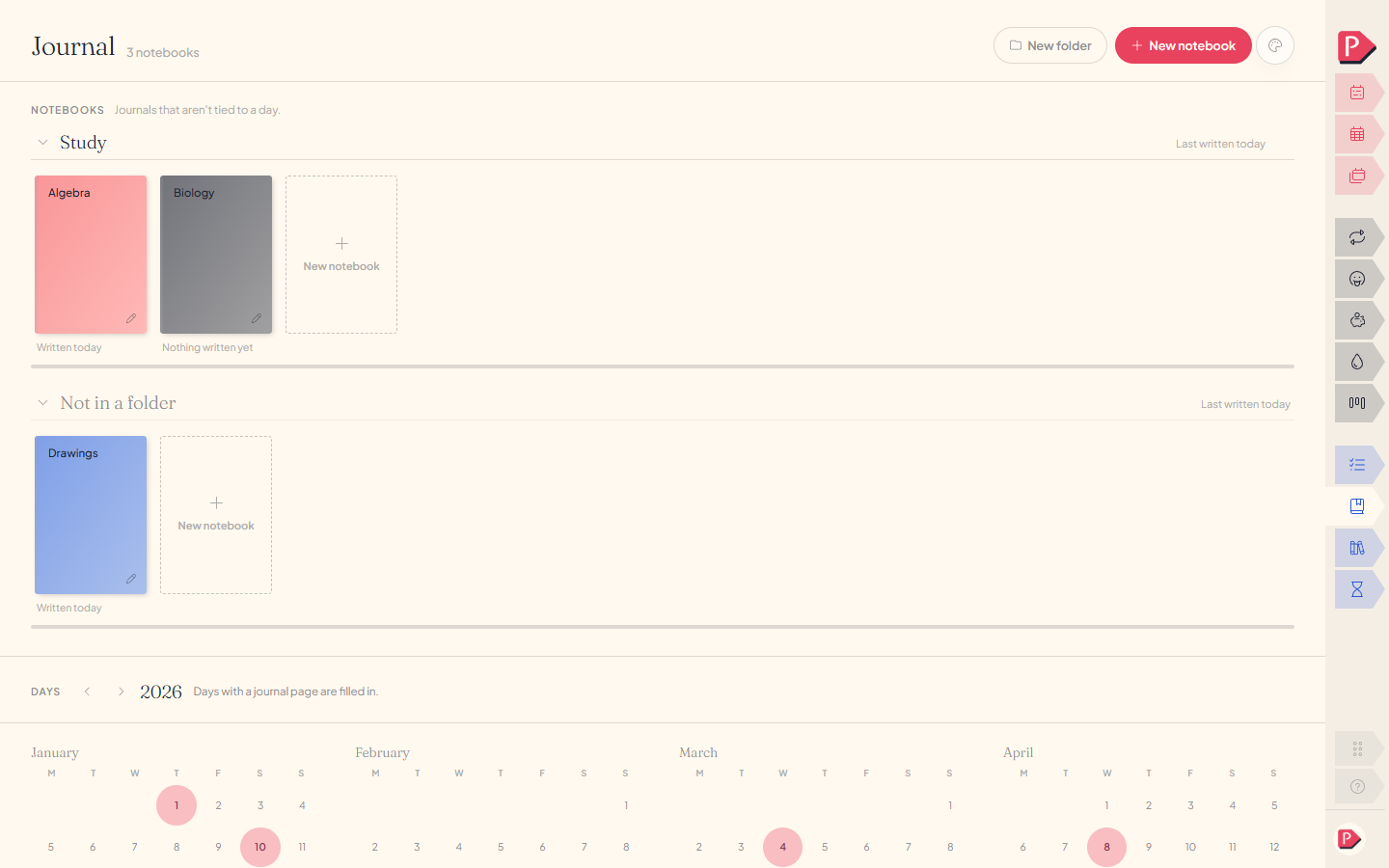
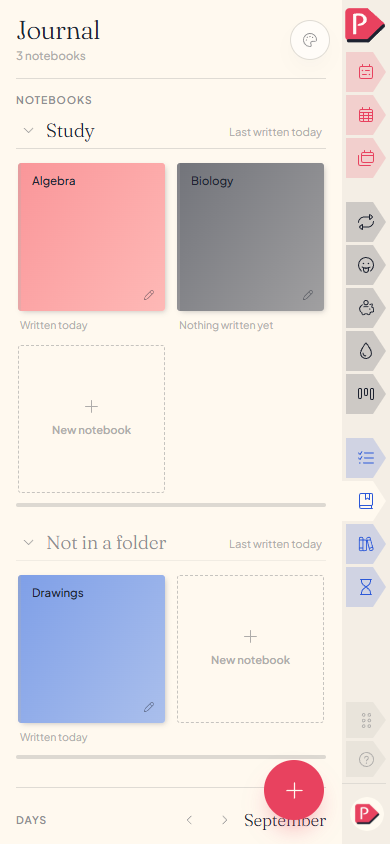
Notebooks come first, one shelf per folder in the order you arranged them, and a last shelf, Not in a folder, for the rest. Under each cover is when you last wrote in it.
Days is underneath: a calendar of every day that has a journal page.
Making a notebook
New notebook at the top of the page starts one on the Not in a folder shelf, and the New notebook tile at the end of a folder starts one in that folder. Type the name on the cover and press Enter.
The + button at the bottom of the screen asks Folder or Notebook. Pick Notebook, name it, choose a colour and press Add notebook. The New notebook tile at the end of a folder does the same, in that folder.
A notebook opens onto a journal page like the one behind a day: writing, photos, stickers and tape, placed where you put them, with as many pages as you want.
For everything you can do on the page itself, see Journaling.
Making a notebook and writing a first line in it
Making a notebook and writing a first line in it, on a phone
Grouping notebooks into folders
New folder at the top of the page names one in place, below your other folders. Click a folder's name to rename it. Its ⋮ button, or a right-click on the name, has Colour, Move up, Move down and Remove, and you can drag a folder by its heading to put it somewhere else.
The + button, then Folder. Tap a folder's name to rename it or change its colour. Hold the name for Move up, Move down and Remove.
The arrow beside a folder's name folds it down to a thin spine for each notebook, so a folded folder still shows what's in it. A folder stays folded or open on all your devices.
A folder's colour shows on the line under its notebooks.
Making a folder, dragging it above another, and folding one
Making a folder, moving it up, and folding one, on a phone
Moving a notebook
Drag a cover along its shelf, or onto another folder. The shelf is outlined and a line shows where the notebook will land. A folded folder takes it too, at the end.
Hold a cover for Move left and Move right, which move it one place along its shelf.
Move to lists every folder, No folder, and New folder, which names a folder on the spot. The notebook goes to the end of the shelf you pick.
Dragging a notebook into a folder, then moving it back with Move to
Moving a notebook into a folder, then one place left, on a phone
Renaming, recolouring and removing a notebook
Right-click a cover, or use its ⋮ button, for Rename, Colour, Move to and Remove. Rename lets you type the new name on the cover.
Hold a cover for Rename, Move to, Move left, Move right and Remove. Rename opens the name and the colour together.
Remove takes the notebook and every page in it. Undo shows for five seconds afterwards.
Finding a day's journal page
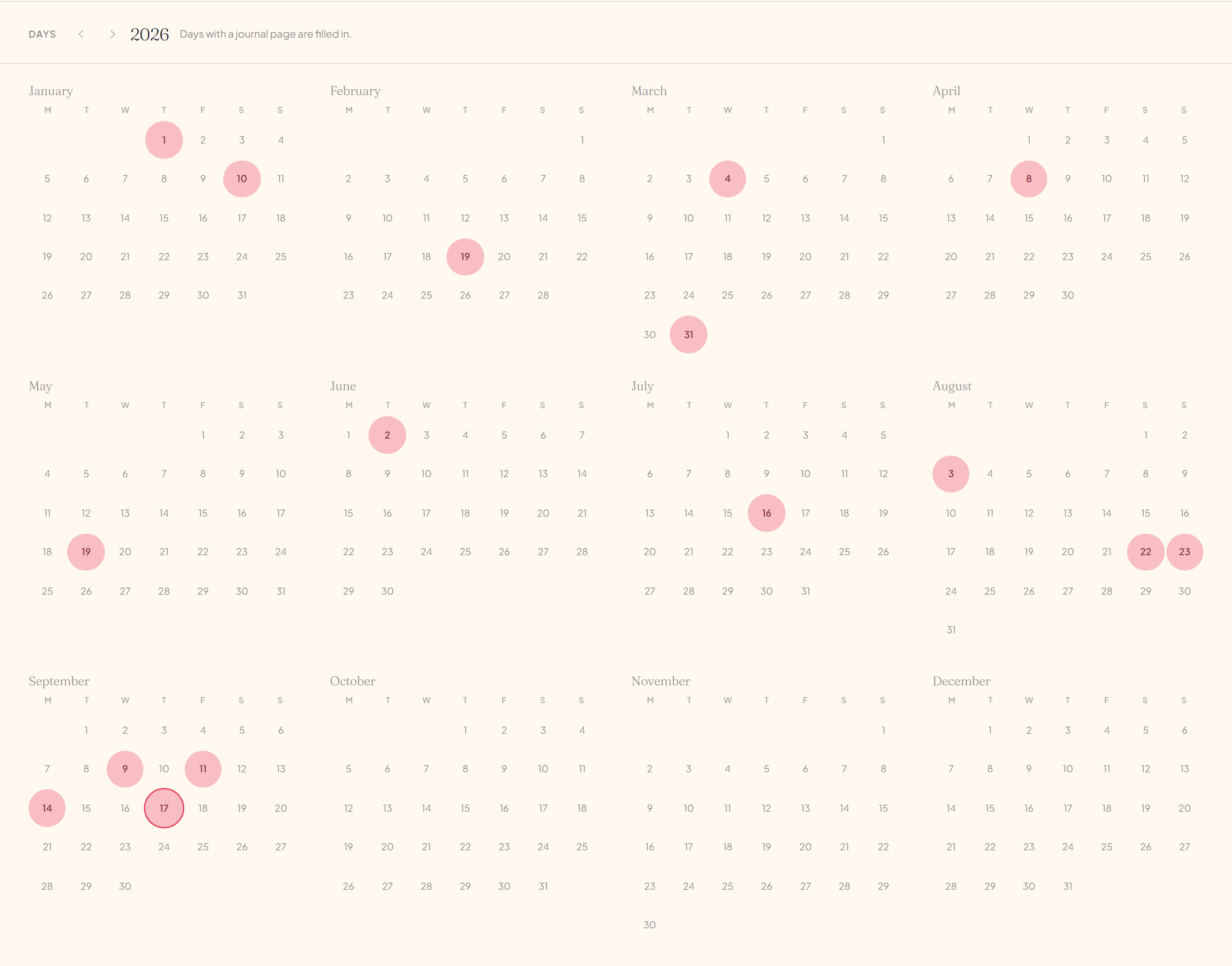
Days is the calendar under the shelves. A filled-in date has a journal page, and picking it opens that page. An empty date starts a new page if it's no more than ten days back or five days ahead. Further out, you're offered a notebook instead.
A desk shows the whole year. The arrows move a year at a time, and This year brings you back.
Opening a day's journal page from Days
A phone shows one month. The arrows move a month at a time, and This month brings you back.
Opening a day's journal page from Days, on a phone
Writing in a notebook or a time capsule never fills in a date. Until any day has a page, Days says so and offers to open today's.
How many notebooks you can keep
Ten on the free plan, and as many as you like with Planye+. The ten are counted across every folder. Folders, the pages inside a notebook, days and time capsules are never counted.
If you have more than ten without Planye+, for example after it ends, the ones after the first ten are read-only. The first ten are counted in the order they're on the page: folder by folder, then Not in a folder.
A read-only notebook still opens, so you can read every page, and you can move it or remove it. You can't write in it, rename it or change its colour until you have Planye+ again. Nothing in it is deleted.
Questions about notebooks
The details, for when you want them. Nothing here is required reading.What's the difference between a notebook and a day's journal page?
Only where it's kept. A day's page belongs to that date and fills it in on your calendars. A notebook belongs to no date: it has a name and a colour and sits in a folder. The pages inside are the same, with the same writing, photos, stickers and tape.
Will a notebook show up on my calendars?
No. Writing in a notebook doesn't fill in a date on Days, or on the week, month or year.
Why won't an empty date start a new page?
A day's journal can be started from ten days back to five days ahead. Picking an empty date outside that brings you to the Journal tab, which offers to start a notebook instead. A date that already has pages always opens, however long ago it was.
What happens to the notebooks when I remove a folder?
They stay. They move to Not in a folder, and Undo, for five seconds, puts the folder back with its notebooks in it.
Can I get a removed notebook back?
Yes, with Undo, for five seconds after you remove it. After that, the notebook and every page in it are gone.
Can I put a folder inside a folder, or a notebook in two folders?
No. A folder holds notebooks only, and a notebook is in one folder or in none.
Can a notebook have more than one page?
Yes, as many as you want, added the same way as on a day's page.
Why can I only read one of my notebooks?
Without Planye+ you can write in ten notebooks, and this one comes after the first ten on the page. Its pages are all still there. Planye+ lets you write in it again, and so does removing or moving notebooks so that it's among the first ten.